

Constellation Supplier Portal
Supplier Portal | ORION Program
Oracle Supplier Portal for Constellation’s suppliers and partners.
How to operate the Constellation Supplier Portal in Oracle.
This page consolidates the portal’s main steps into task-oriented navigation. You identify the activity, follow the menu path and compare it with real screenshots of the environment to reduce errors, rework and uncertainty in supplier operations.
Recommended flow
If this is your first access, follow the order below. If you already use the portal, skip straight to the task you need in the menu just below.
Receive access and adjust preferences
Sign in to Oracle Applications Cloud and validate language, time zone, currency and date and number formats.
Check orders, agreements and shipments
Use the tasks menu to locate the right PO, confirm the document and track its life cycle.
Create NFFs or track payments
Attach the correct tax document and supporting files, add lines and track the status after submission.
Respond to negotiations, qualifications and update registration
Centralize proposals, questionnaires and registration maintenance in the same portal so you don’t miss deadlines.
Practical tip
Before submitting any document or response, check that the expected status and attachments are correct. In the Oracle portal, one incomplete detail often becomes an approval pending item.
LOOKUP
First access
Receive your login, sign in to Oracle and do the initial setup of language, currency, date, time and time zone.
OPERATION
Orders and schedules
Find the PO, track its life cycle, confirm the document and make changes when applicable.
LOOKUP
Agreements, shipments and contracts
Use the portal as a reference point for active agreements, receipts, returns and contract documents.
BILLING
NFFs and payments
Create NFFs with the correct type, attach the required supporting files and track acceptance and payment.
QUOTATION
Negotiations
Confirm participation, send messages to the buyer, fill in requirements and submit proposals.
COMPLIANCE
Qualifications
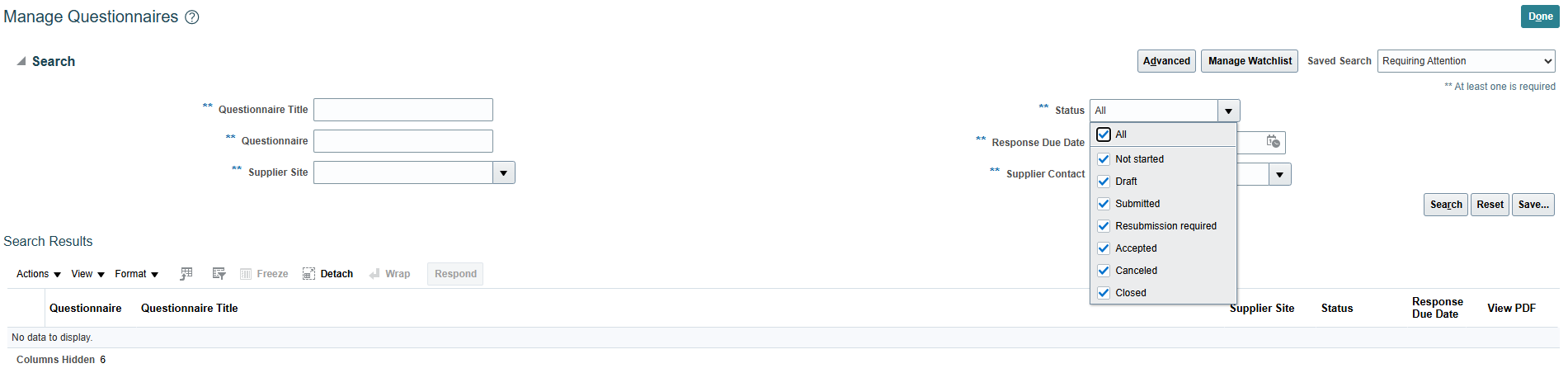
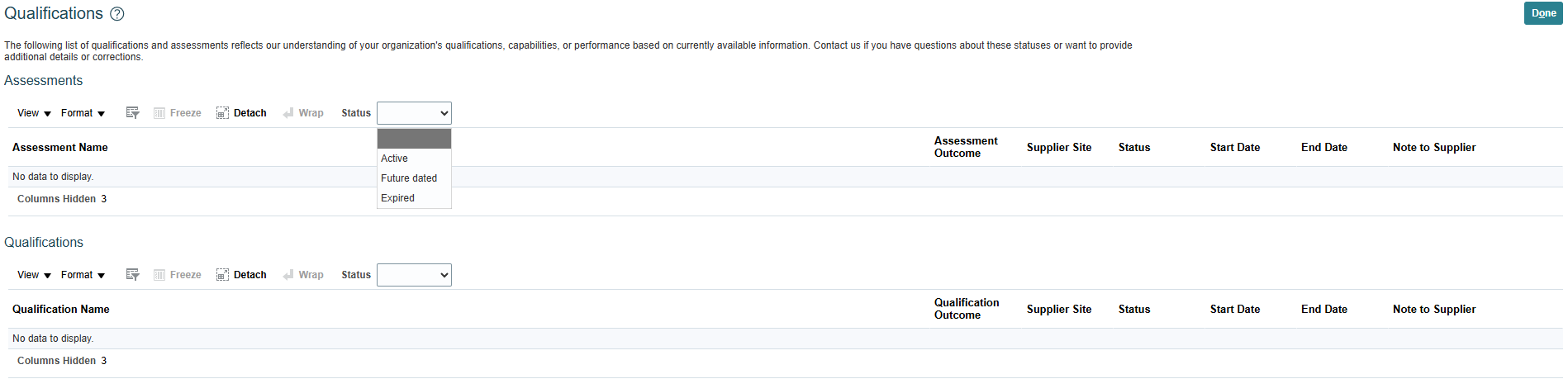
Manage received questionnaires and track status, due dates and available PDFs.
REGISTRATION
Company profile
Update corporate data, addresses, contacts, payments and track the approval flow.
SUPPORT
ORION support
Check the PDF manual and the contacts provided by Constellation whenever you have an operational question.
First access and preferences
The training material indicates that the supplier receives access through the e-mail registered in the system and, right after signing in, must adjust the user preferences to work with the portal in the correct standard.
How to sign in for the first time
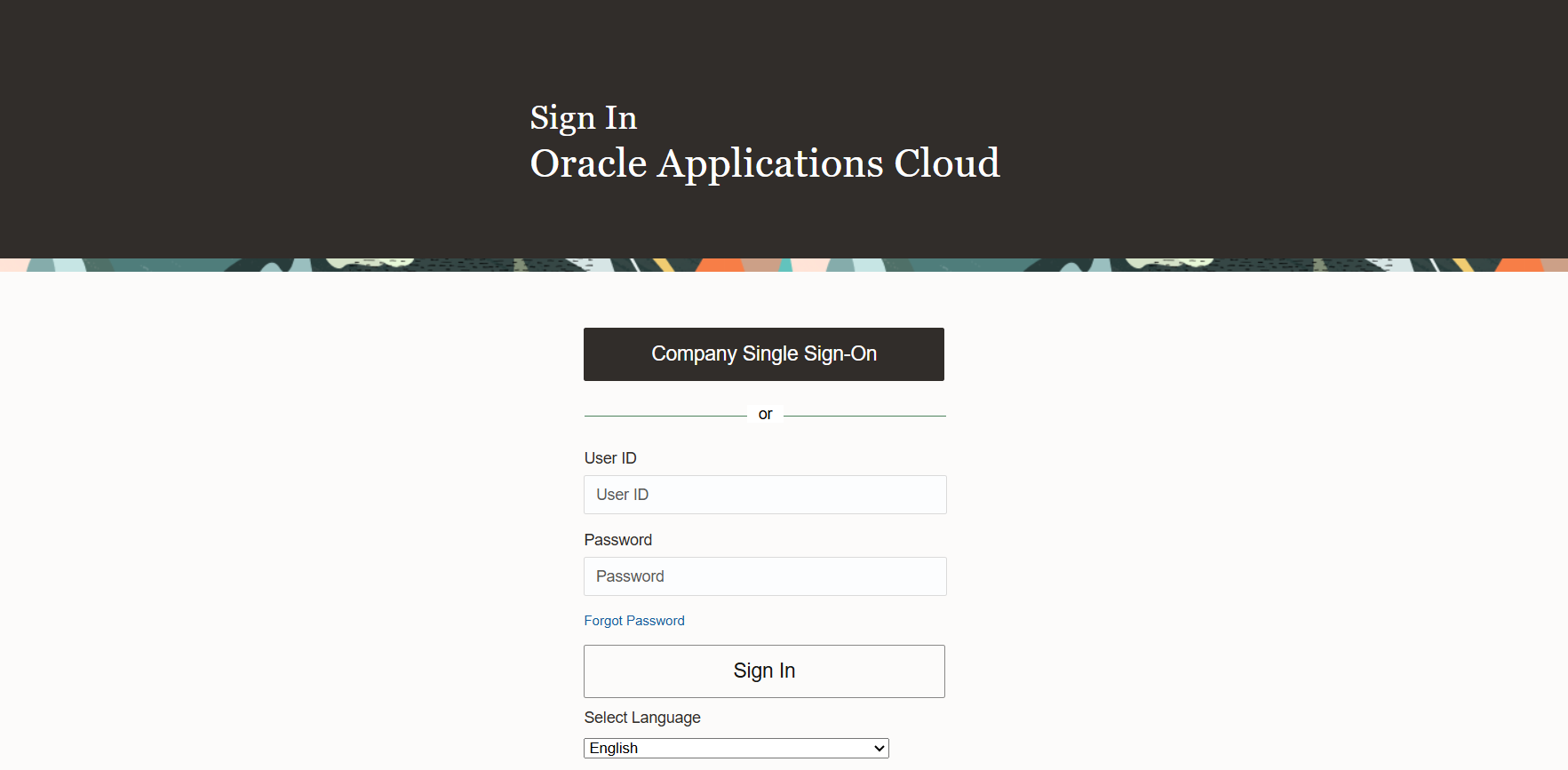
- Use the login sent to your registered e-mail. Access to Oracle Applications Cloud is released with username and password instructions.
- Sign in through Oracle Applications Cloud. If your organization uses SSO, prefer the Company Single Sign-On option.
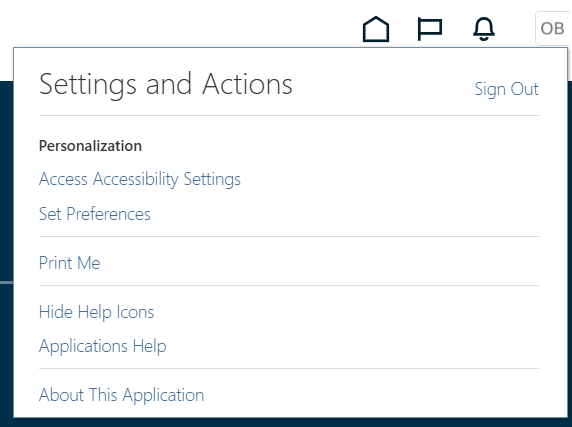
- Open the user menu. At the top of the screen, go to Settings and Actions to access preferences.
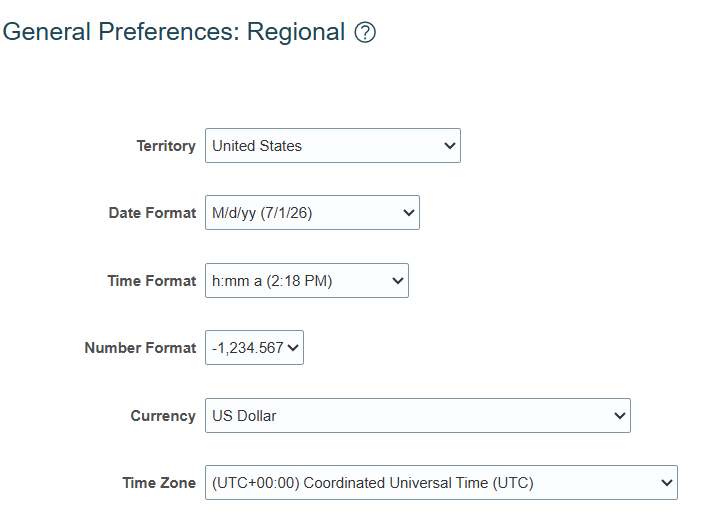
- Adjust territory, currency, date, time, number and time zone. This avoids misreading fields, promised dates and values.
- Save and close. Whenever you finish an adjustment, click save to keep your environment standard.
Attention
If you did not receive access or noticed you signed in with the wrong language or format, fix it before moving on to orders, NFFs or negotiations. This adjustment affects how dates, currency and filters are read.
Orders and schedules
Orders is the most sensitive flow in the portal. The manual highlights that confirming the Purchase Order is mandatory to enable the next steps and allow material or service receipt in the ERP.
Main path
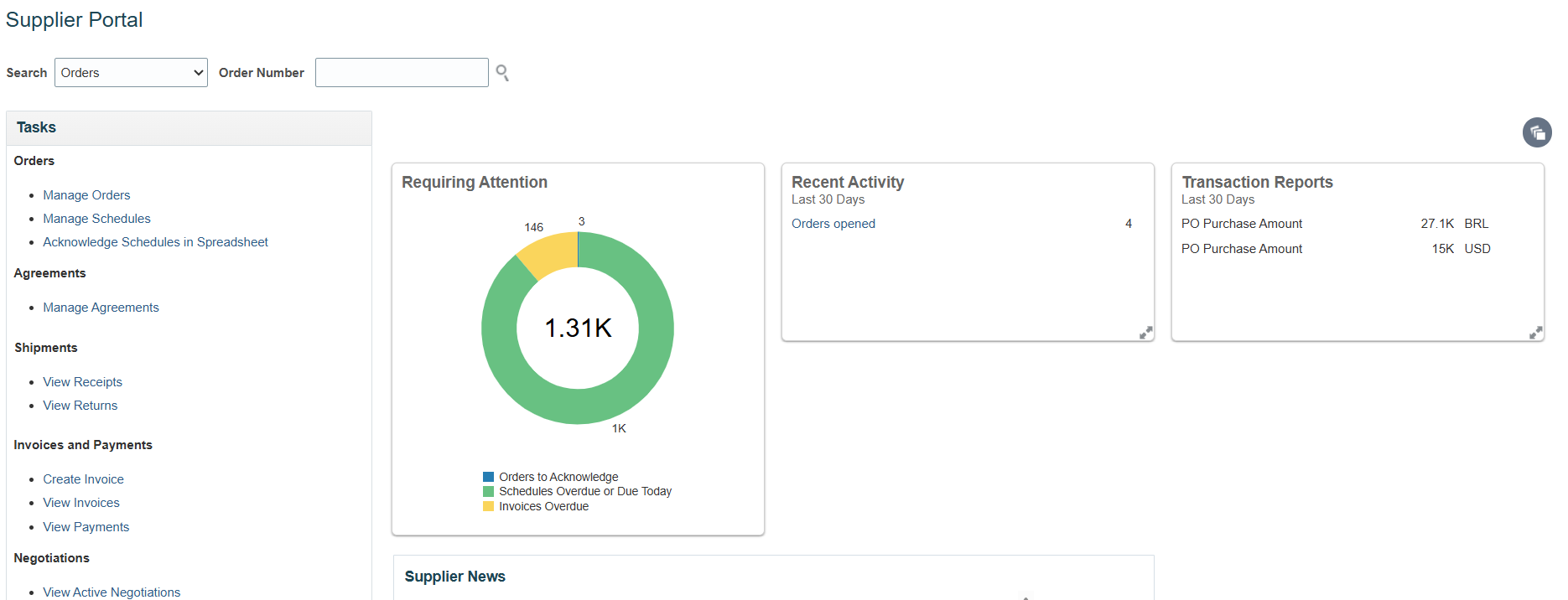
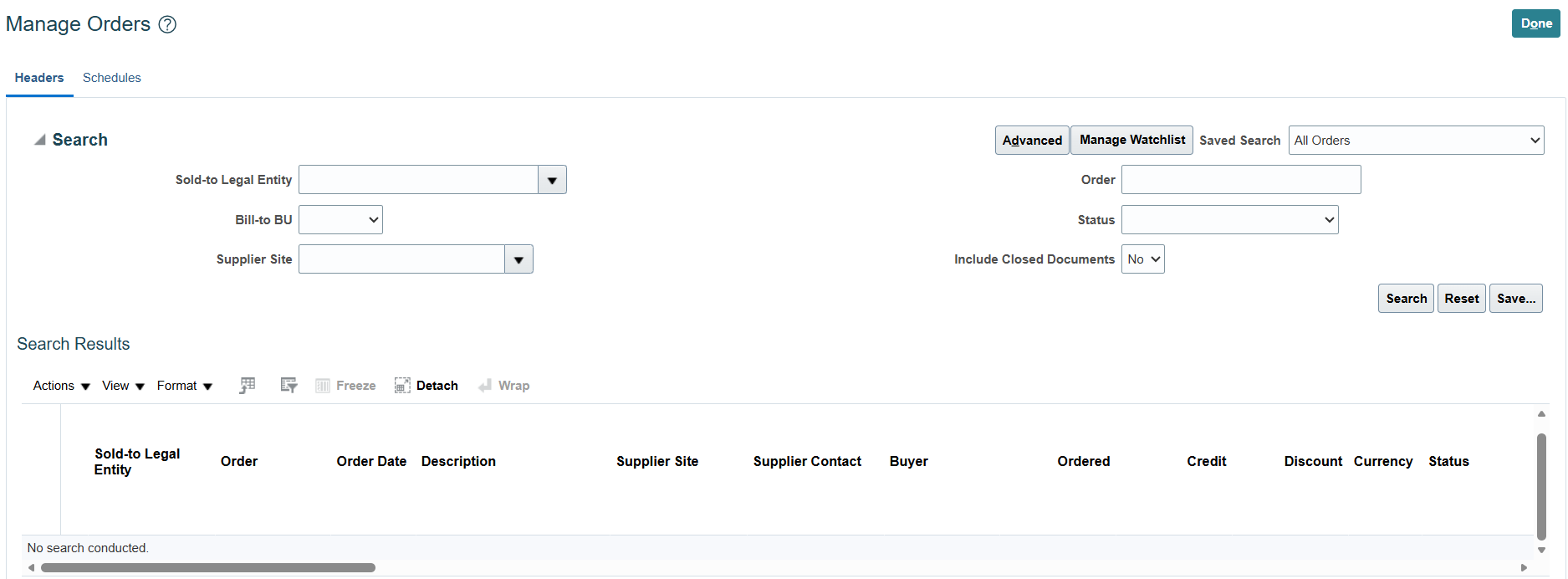
- In the Supplier Portal, open the Tasks menu. Go to Orders > Manage Orders.
- Search for the PO. Use number, status, supplier site or advanced search to filter.
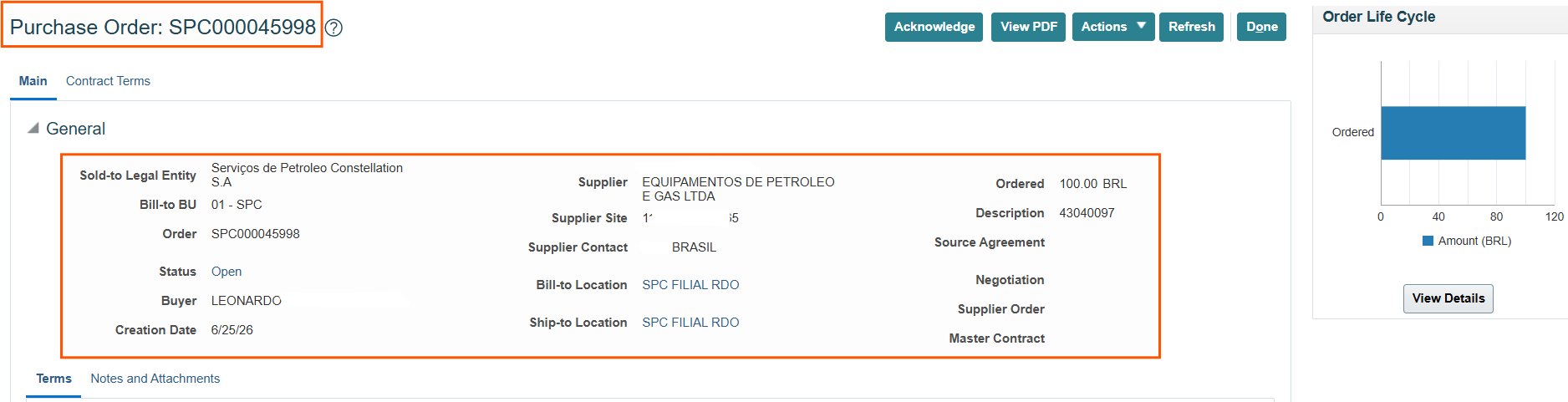
- Open the document. In the order you can view general data, terms, notes, attachments, lines and schedules.
- Track the life cycle. The side panel shows the order status.
- Confirm the Purchase Order. This step is mandatory to continue with receipt and other transactions.
When to edit the order
According to the manual, editing should be used when the promised delivery date needs adjustment and the status is Open. Provide the reason for the change, save and submit the change order.
Important
Planning schedules are used to communicate long-term demand forecasts. Do not leave the PO unconfirmed, because that blocks the operational receipt flow.
Agreements, shipments and contracts
Agreement, shipment and contract documents consolidate the commitments made between supplier and Constellation. The portal centralizes lookup and tracking.
Agreements
- Go to Agreements > Manage Agreements.
- View active, closed or expired agreements at header or line level.
- Open the agreement to see items, terms and the amount already consumed.
- The released-amount hyperlink lets you check the POs created from the agreement.
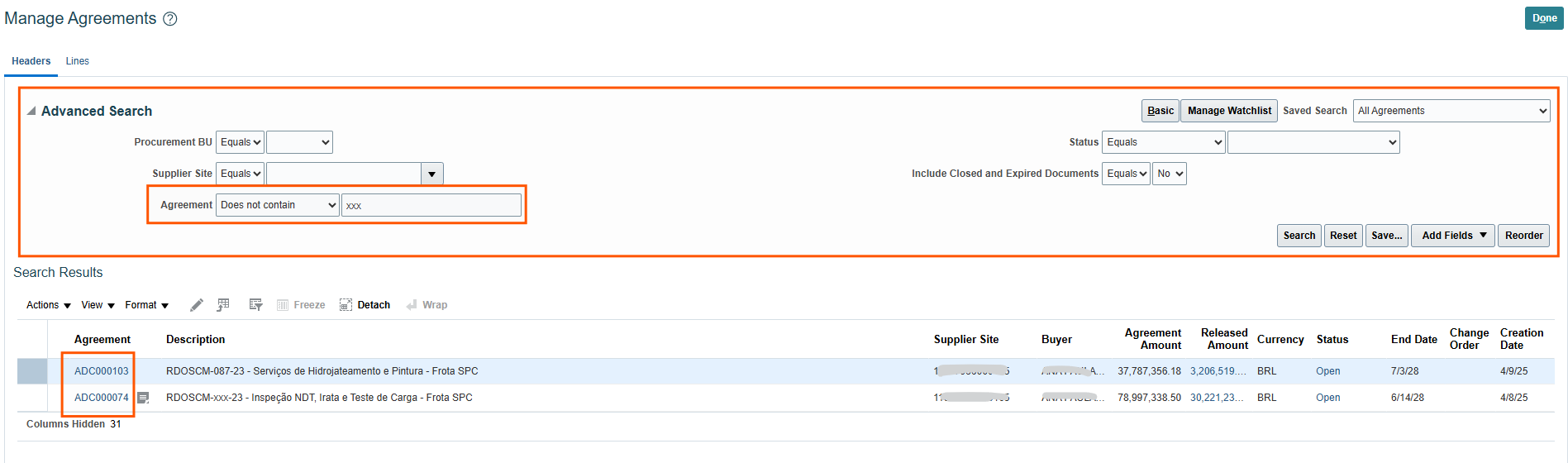
Advanced search and list of agreements available to the supplier.
Shipments
- In the tasks menu, use Manage Shipments, View Receipts and View Returns.
- Receipts show item data, dates and attachments.
- Returns are available to look up and track what was sent back to the supplier.
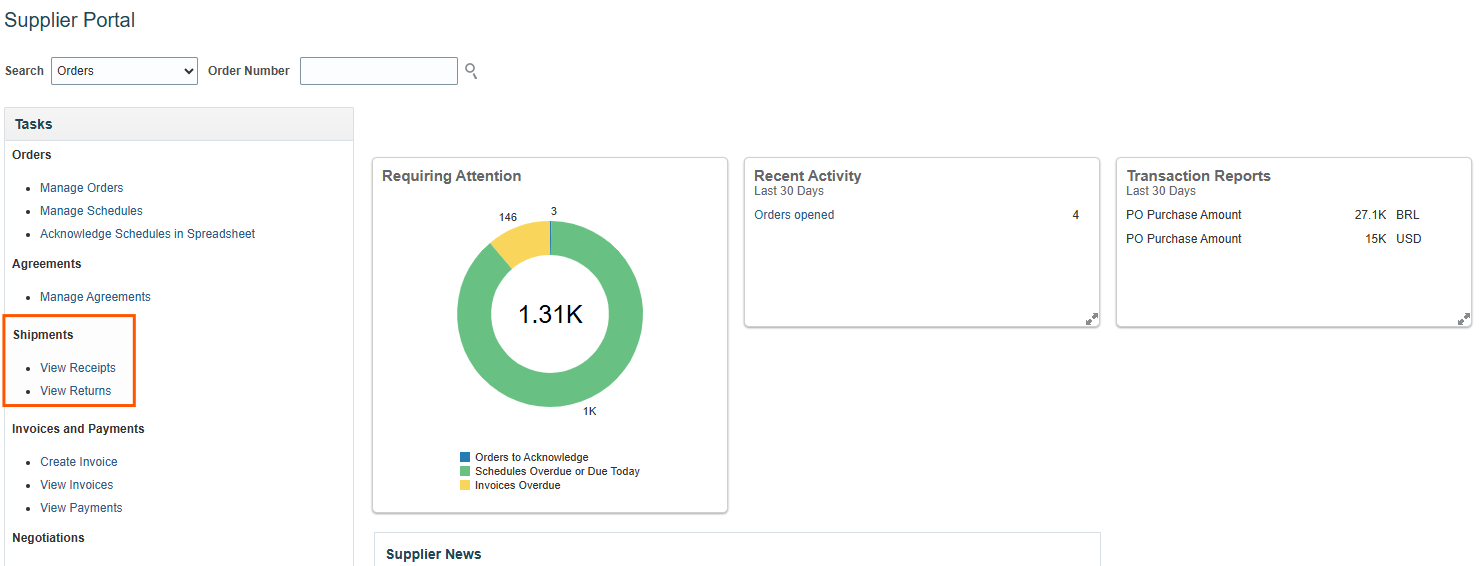
The side menu highlights access to shipments, receipts and returns.
NFFs and payments
The Supplier Invoice (NFF) is the document that formalizes billing. The portal lets you create it, attach tax support and track the status through to payment.
NFF flow
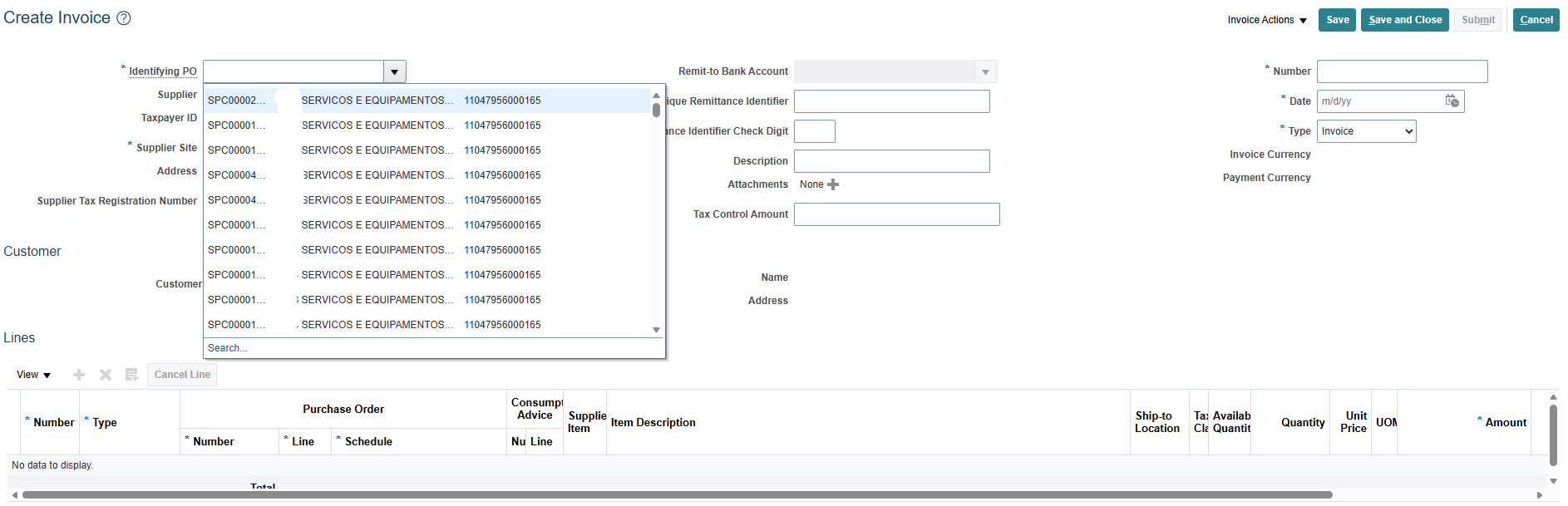
- Go to NFFs > Create NFF. Select the type (material, service, import).
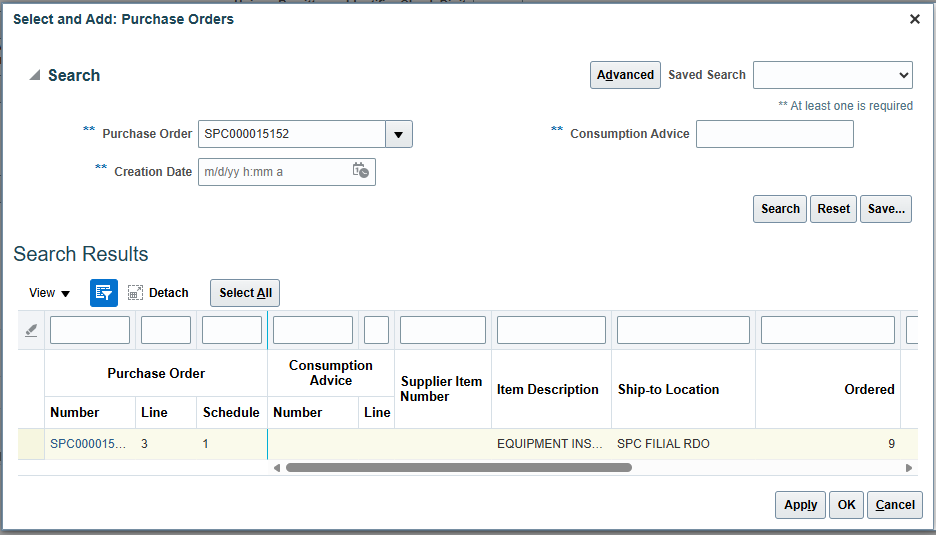
- Link the order. Choose the related PO and select the lines to bill.
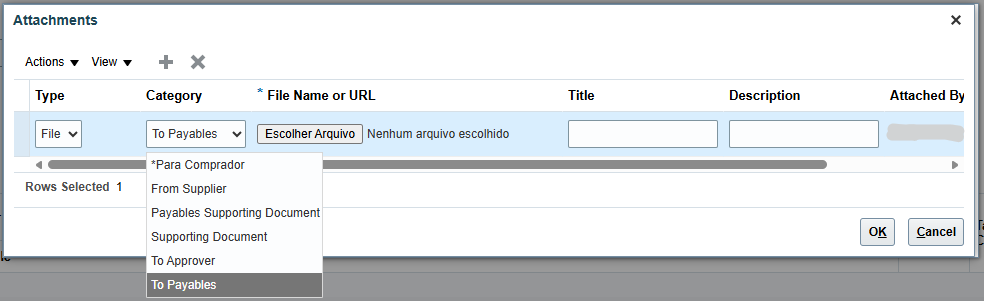
- Attach the tax document and support. NF-e, NFS-e or equivalent, according to the type.
- Submit for validation. The system checks integrity before sending for approval.
- Track the status. From Received to Paid, every step is visible.
Important alerts from the manual
If the documentation is incomplete, the document may return to the portal with a Cancelled status. The system does not allow resubmitting an NFF with the same numbering without complementing the end of the tax document. For services and international purchases, the system allows linking only one order per NFF. For a service NFF line, adjust the tax classification with the Supplementary Law 116 code when applicable.
Negotiations
The negotiations module brings together quotations, auctions and price requests. Here the supplier confirms participation and submits proposals.
How to participate
- Go to Negotiations in the Tasks menu. List the active opportunities.
- Confirm participation. Accept the invitation to view requirements.
- Fill in requirements and lines. Attach documents when requested.
- Submit your proposal. Track the closing deadline and the buyer’s messages.
Training tip
Ancillary costs of supplying material, such as freight, must be included in the item’s unit price. There is also the option to respond via spreadsheet, with export, filling and later import.
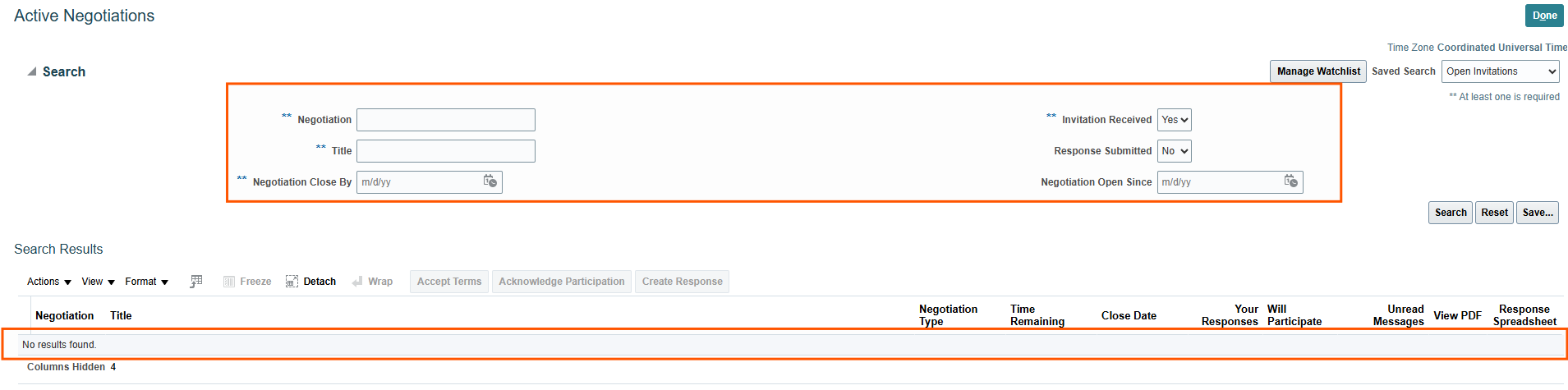
The initial listing lets you filter invitations, confirm participation and start creating the response.
Qualifications
Qualification questionnaires measure whether the company meets the supply criteria. Keep them always up to date.
How to respond
- Go to Qualifications in the Tasks menu. List the assigned questionnaires.
- Open the questionnaire. See status, due date and the descriptive PDF.
- Answer the sections. Attach supporting documents when required.
- Submit. Track the review by the Procurement area.
Company profile
Corporate registration must always reflect the company’s reality. Update it whenever there is a change in legal name, address, contacts or bank data.
Registration maintenance
- Open Company Profile. View the current data.
- Request a change. Edit the required field and submit it for approval.
- Track the flow. The change goes through internal validation before taking effect.
Point of attention
Registration changes are not instant. They follow approval according to the organization’s rule, so it is worth reviewing everything before submitting.
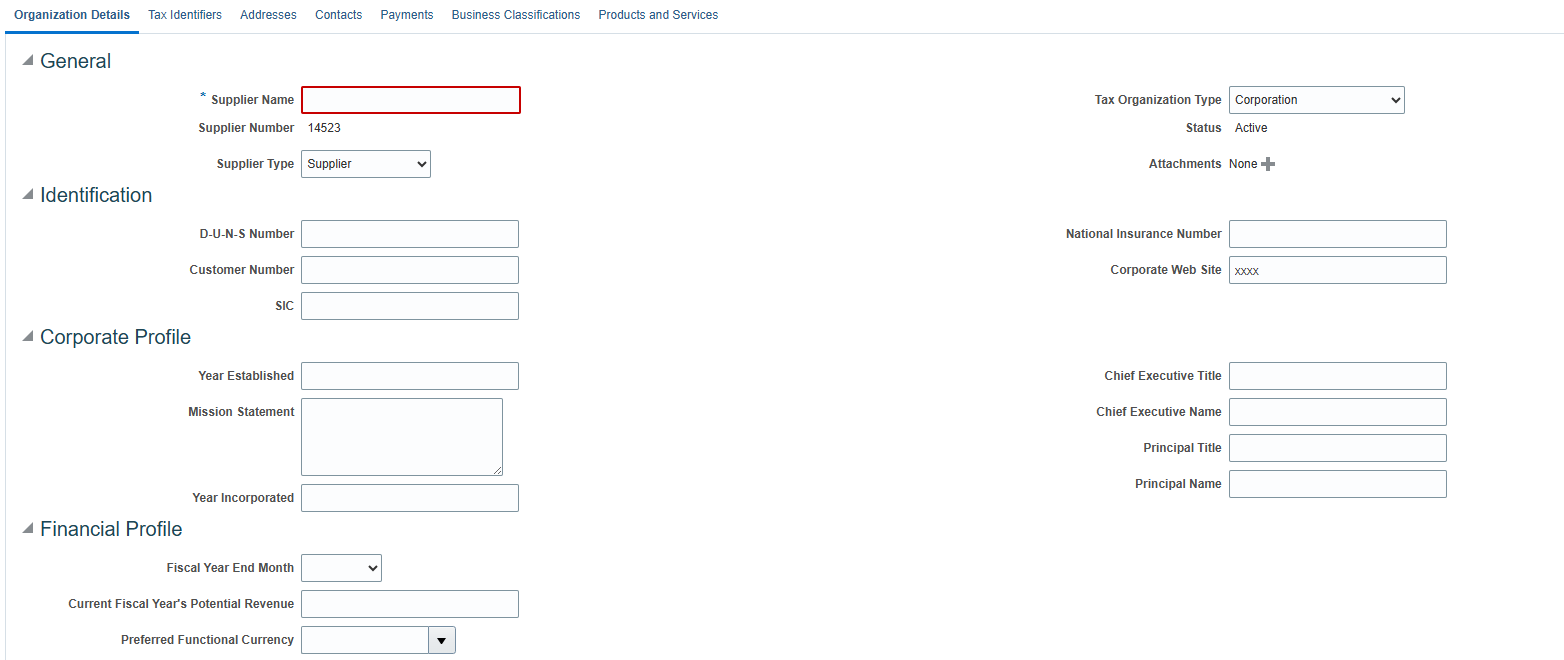
The profile tabs bring together corporate, tax, address, contact, payment and classification information.
ORION support
When an operational question is not resolved on this page, use the official ORION Program support channel to talk to the Constellation team.
Operational portal questions
Contact indicated in the manual for questions about using the Supplier Portal and purchasing guidance.
Program questions and information
Contact shown on the ORION page for general information and tracking of the transformation program.
Additional materials
Download the consolidated manual and, if you need to reinforce platform knowledge, check the public Oracle Learning Explorer track.